Upload or import from a link
Open Video Platform → Video on demand (or Audio on demand), drop files or click Upload; several files upload in parallel and an interrupted upload resumes where it stopped when you pick the same file again. "From link" takes a direct file address (mp4, mkv, mov, mp3, m4a, wav, m3u8…) or a Google Drive / Dropbox share link and whycloud fetches it. Every organization has its own storage space.
Automatic qualities and smooth playback
After upload several qualities are produced (up to Full HD or the source quality, whichever is lower) and the player switches between them without stalling, based on the viewer connection and screen size. There is a seek point every 2 seconds, so seeking is instant, and the progress bar shows preview thumbnails while dragging. The Qualities tab changes the ladder or switches to a single quality.
Trim and cover
On the Trim tab set the start and end with the handles or by typing times; a new version is built while the current one keeps playing. Links and embeds do not change and the original file is kept, so the full version can always be restored. Pick a cover from six automatic suggestions, upload an image, or pause the player on any frame (frame-by-frame buttons help) and click "Cover from current moment".
Chapters, subtitles and tags
Chapters are marked on the progress bar and viewers jump straight to them; paste a whole list YouTube-style ("00:00 Intro" per line). Add SRT or WebVTT subtitles in any language. Organize the library with tags, search and filters; select several items to tag them, change visibility or add them to a playlist at once.
Playlists and podcasts
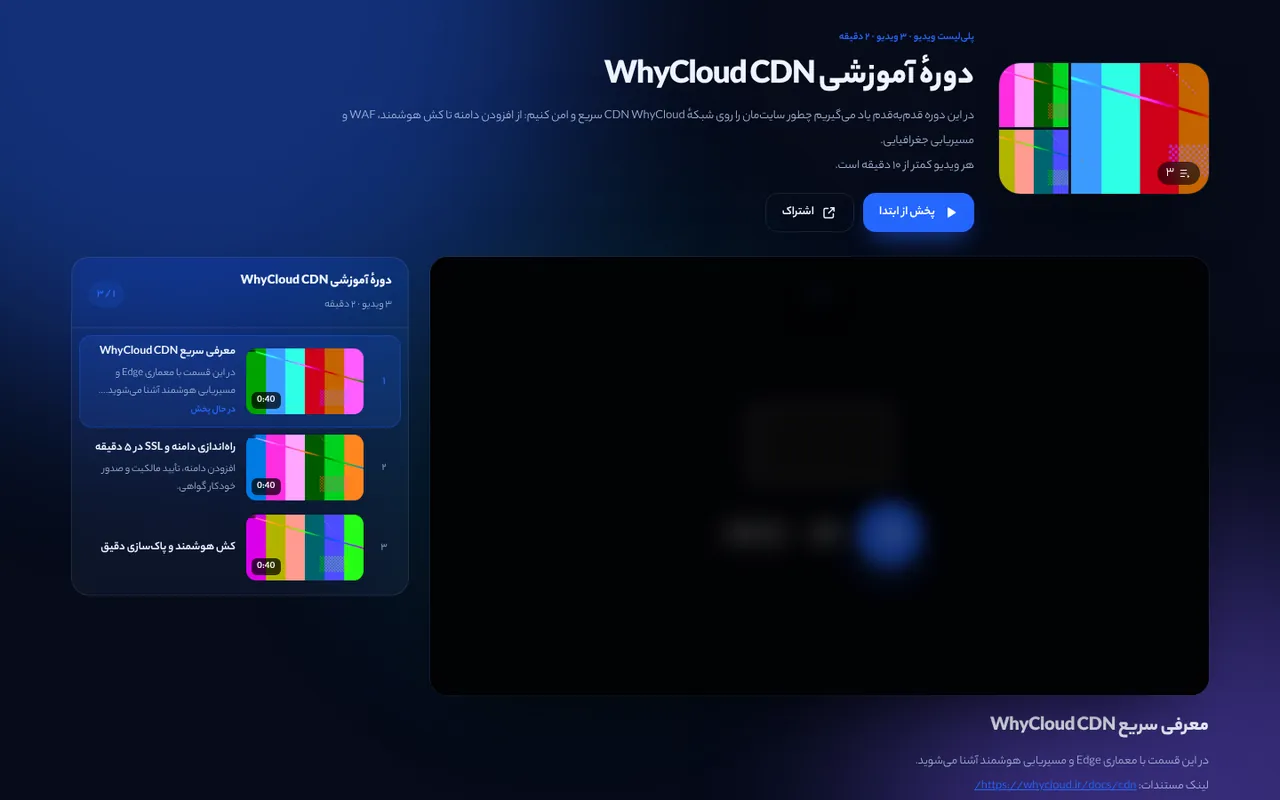
Playlists keep items in your order (drag to reorder) and the playlist player plays them back to back with the list beside or below the player. A public audio playlist can be published as a podcast with an RSS feed for podcast apps.
Embeds and sharing
Every video, audio file and playlist has a watch page, a responsive or fixed-size iframe, oEmbed (WordPress and others) and a direct HLS address for apps. Parameters: ?t=90 start at 90 s, ?autoplay=1, ?muted=1, ?loop=1, ?title=0 and ?theme=. The console shows a live preview of the embed code.
Privacy and domain restriction
Visibility is public, unlisted or private. With a domain list (example.com or *.example.com) embeds only work on your sites and files are served through expiring links. Private items can only be watched inside the console.
From live streams to the library
In Video Platform → Live → Recordings click "Send to library" next to a recording: choose video or audio, title, trim range, tags, playlist and visibility. The file goes straight from the streaming server to the library and is processed there.
Processing on your own server
Processing runs on whycloud servers by default. When the platform allows it, Settings lets you pick one of your servers instead; the processing module is installed automatically and only receives short-lived links for each job (storage keys never reach your server).
Analytics
Each item shows daily views, watch time, average view duration, completion rate, an audience-retention curve (share of viewers reaching each point), countries, devices and referring sites.
Pricing
Three things are metered: stored data (GB-hours), minutes of content processed (each upload, trim or quality change) and data delivered to viewers (GB). Rates are shown on the Billing page.
Playlist builder
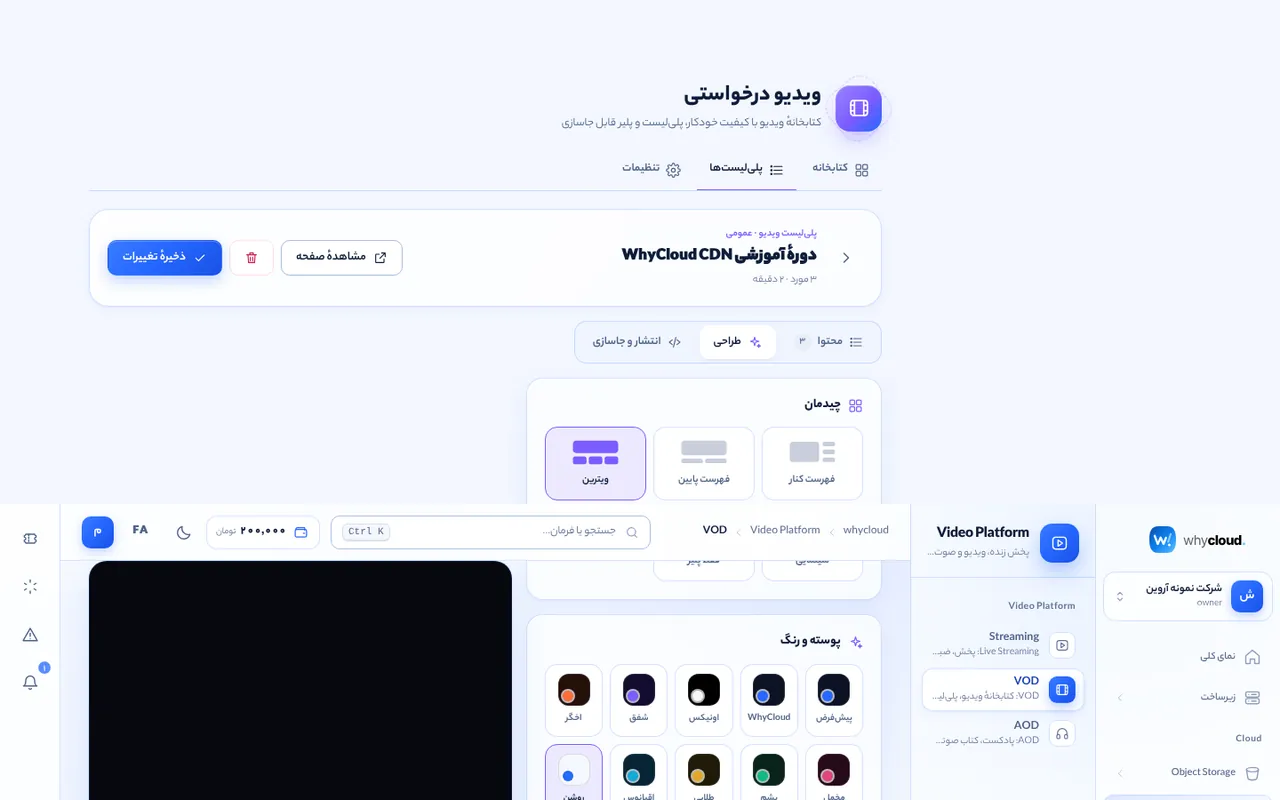
In VOD or AOD → Playlists each playlist has three tabs: Content (order, titles, descriptions), Design (side, bottom, grid, cinema or no list layouts; ready themes; brand color; background; corner radius; call to action; hide numbers, descriptions or branding; auto-play next) and Publish & embed. A live desktop/mobile preview shows every change instantly.
Embed on your site
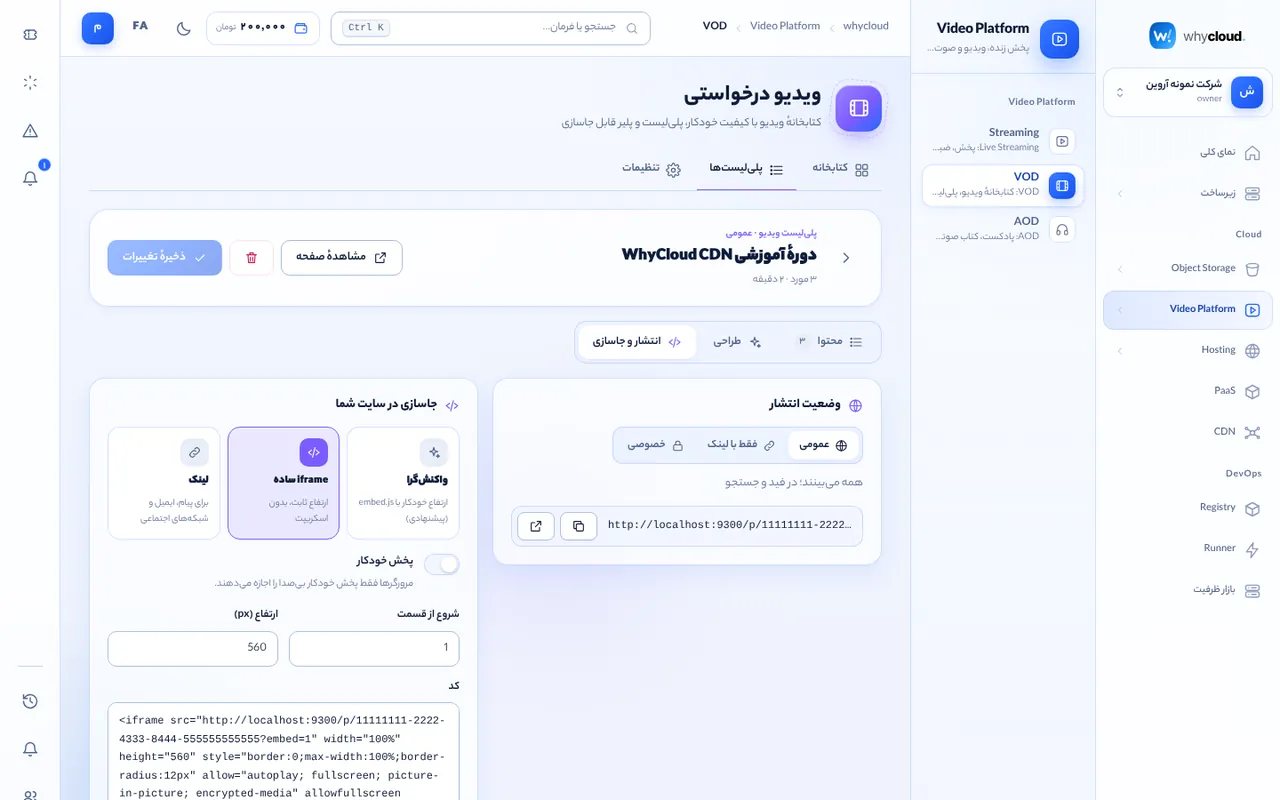
On Publish & embed choose responsive (auto height via embed.js), fixed size or a direct link, and paste the iframe into your site. Domain restrictions keep the player on your own sites.