
Start a meeting
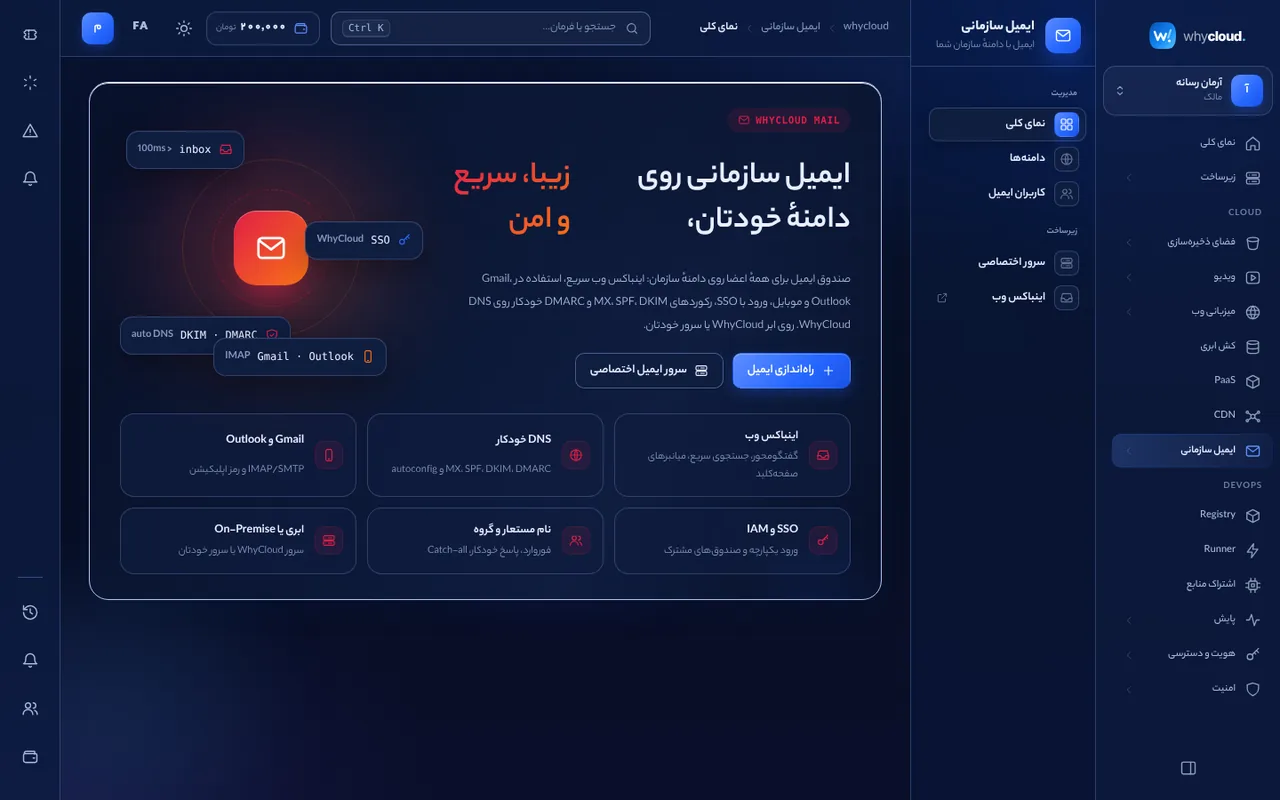
In the console → Video platform → Meet click “Instant meeting”, or choose “New meeting” at whycloud.ir/meet. Every meeting has a permanent link such as whycloud.ir/meet/abc-defg-hij that can be reused any time. “Schedule a meeting” sets the title, time, duration, invitees and co-hosts, and gives a calendar file (ics) for attendees.
Access and the lobby
Open: anyone with the link joins directly. Organization (default): members and invitees join directly, guests ask to join. Restricted: only invitees join directly, everyone else asks. Requests reach the host at once with a sound and an “Admit” prompt, and can be admitted or denied in the People panel.
SSO sign-in
Console members join with their WhyCloud session. Company SSO users (synced from AD, LDAP or Keycloak, or Google and Microsoft) choose “Sign in with company SSO” on the meeting page; Meet is registered automatically as a managed app of the organization’s SSO and its two-step policy applies.
In the meeting
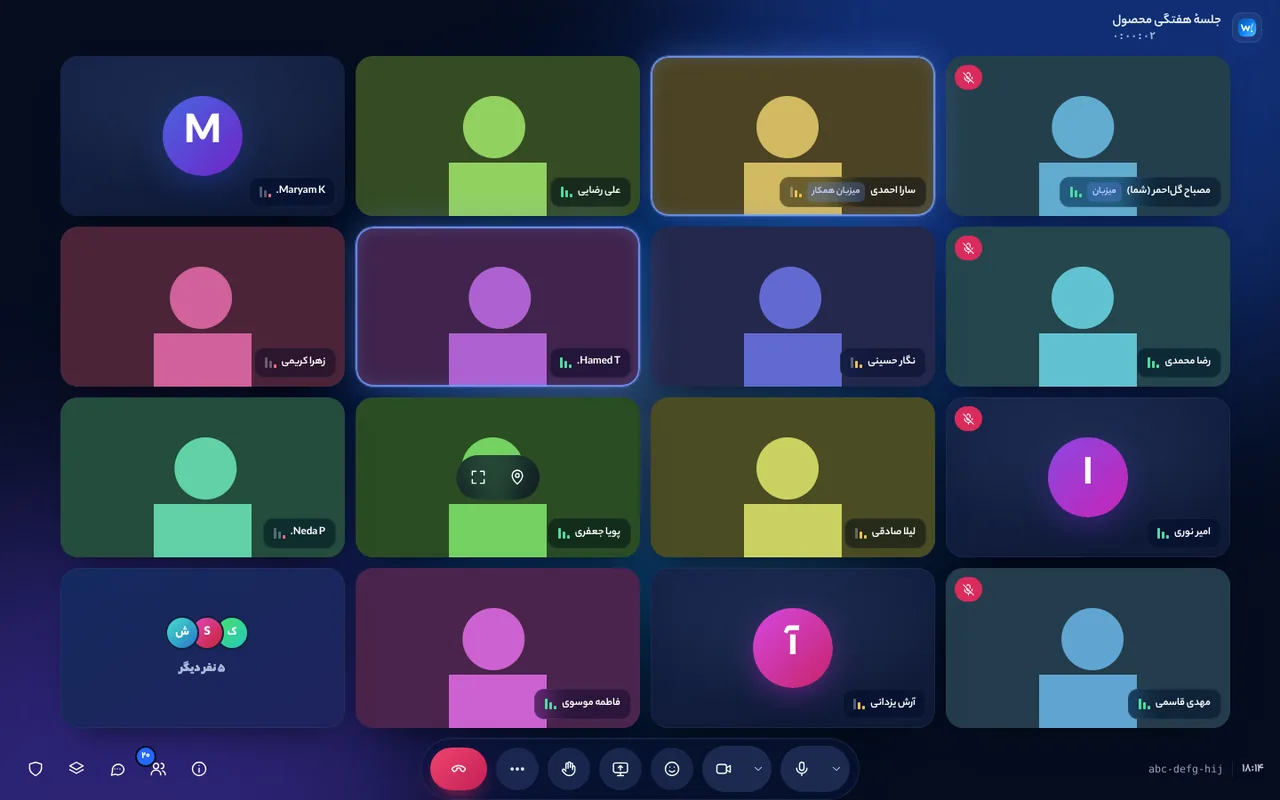
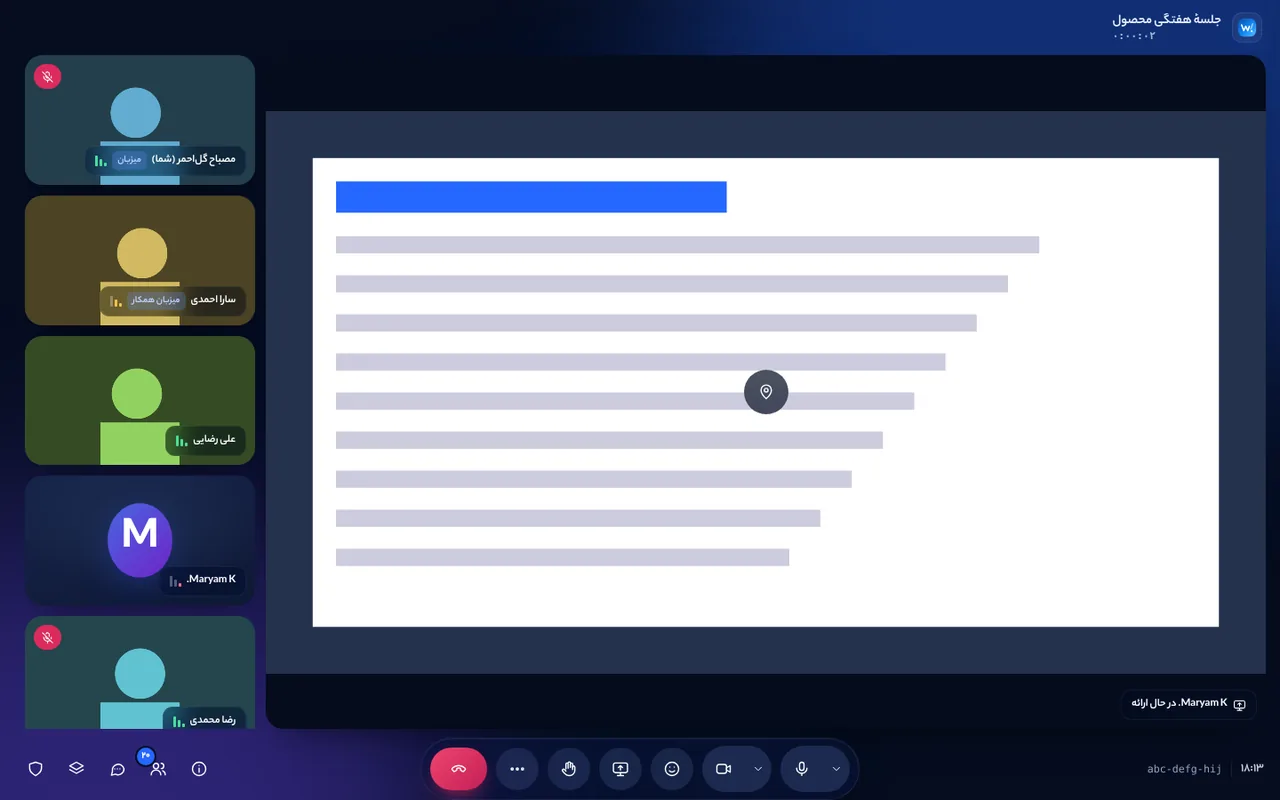
Microphone (Ctrl+D), camera (Ctrl+E), present, react, raise hand (Ctrl+Alt+H), chat (Ctrl+Alt+C) and people (Ctrl+Alt+P). More options change the layout (auto, tiled, spotlight, sidebar), the number of tiles, picture-in-picture, full screen and devices. Double-click a tile to pin it.
Host controls
The host panel sets access, who may present, chat and reactions, joining muted or with camera off, mute everyone and end for all. In People, mute a person, make them a co-host or remove them. Hosts can mute others but, for privacy, cannot unmute them.
Recording and VOD
Start recording under Activities → Record (or turn on automatic recording in the meeting settings). Everyone sees “This meeting is being recorded”. When it stops, the file is sent from the meeting server straight to the organization’s video library (VOD) and processed; Recordings shows each one’s status and VOD link. Without VOD set up, the file stays on the server and can be sent again later.
Live streaming the meeting
Under Activities → Live stream enter an RTMP address and stream key (from a WhyCloud Live stream, YouTube or Aparat), up to three at once. The whole conference is streamed with the same dynamic layout; stream keys are masked in the console.
Quality on slow internet
Each camera is sent in several layers (simulcast; VP9 SVC on Chrome and Edge) and each viewer receives only the layer its tile and network allow; layers nobody watches are not sent. Audio has priority with Opus, RED and DTX. When UDP is blocked the connection uses TCP or TURN, and short outages reconnect without leaving. On a poor connection you are offered to turn your camera off.
Nearest server and seamless moves
Before joining, the browser measures the real network distance (a UDP round trip on the media path) to each Meet server, and the meeting is placed on the server nearest to its people. It measures again every 30 seconds; when another server becomes clearly nearer, or the current one fails, the meeting moves without anyone leaving or rejoining: browsers connect to the new server and publish the same microphone, camera and screen before letting go of the old one. Recording and streaming continue on the new server. For dedicated servers choose “Nearest dedicated server” under Meet settings.
Dedicated Meet server
To keep audio and video inside your network, follow the wizard under Dedicated Meet server: pick a connected server, version and address (e.g. hq.meet.whycdn.ir). LiveKit SFU, Redis and the recorder are installed with Docker; the TCP and UDP ports shown must be reachable from the internet. Then select the server under Meet settings. New versions are offered automatically and upgrades roll back on failure.
Billing
Participation per participant per minute (participant-hour), recording and live-streaming minutes separately, and dedicated servers per running hour. The recorder is not counted; recorded video is stored at VOD rates. See Pricing, “Meet”.
Streaming on WhyCloud Live
Under Activities → Live stream choose “WhyCloud Live”: the organization’s channel is created or reused and a watch link is shown to copy and share; other RTMP destinations can be added at the same time.
Cost calculator
In the Meet console, “Cost by people and time” estimates a meeting’s cost from participants and duration at current prices. This month’s usage and each meeting’s peak attendance appear in the meetings list.
The whymeet.ir address
Meet has its own domain: whymeet.ir. Each meeting’s link is whymeet.ir/meet/<code> and the short whymeet.ir/<code> works too. Old whycloud.ir/meet links move to whymeet.ir automatically.
Add to calendar
In the Meet console, “Calendar” beside a meeting adds it to Google Calendar, Outlook, Microsoft 365 or an .ics file. Scheduled meetings also show “Add to calendar” on the meeting page for everyone, guests included. “Connect your calendar” keeps all your meetings in your calendar, always current.