
Connect a Windows server
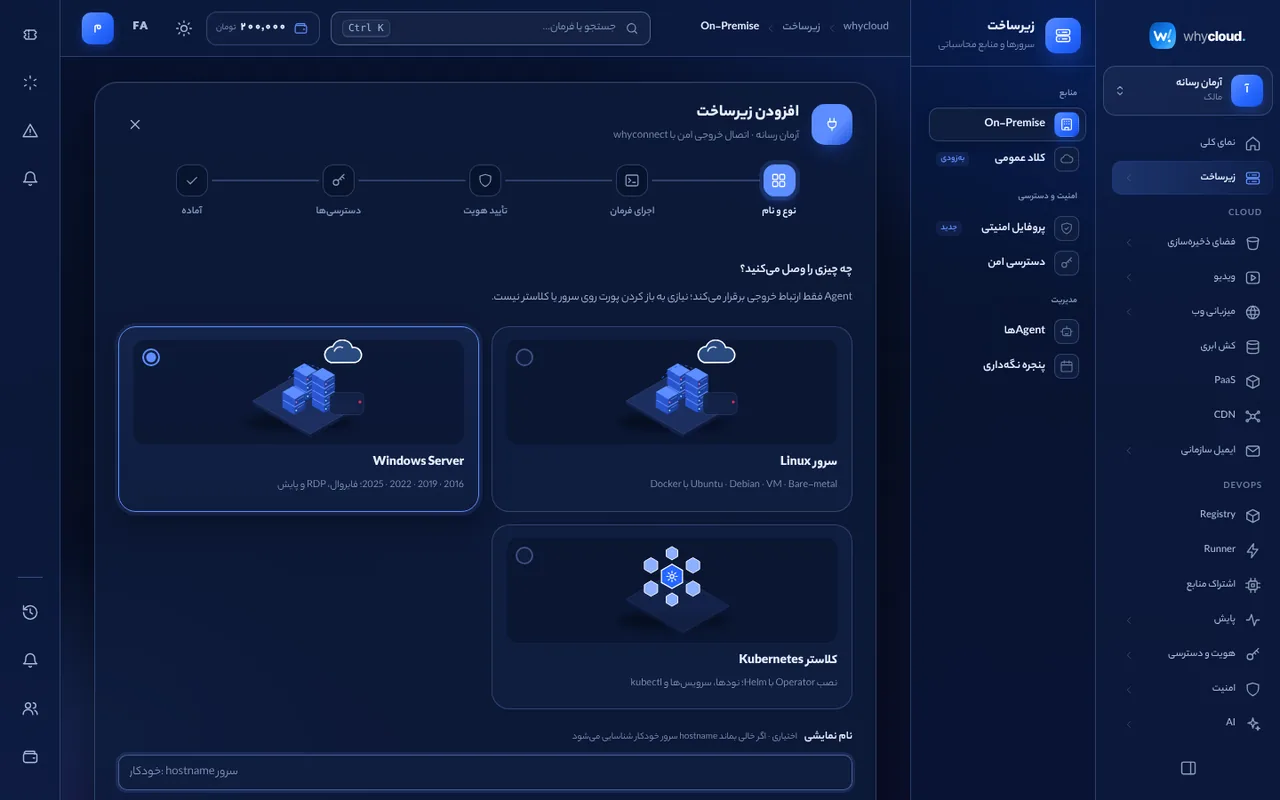
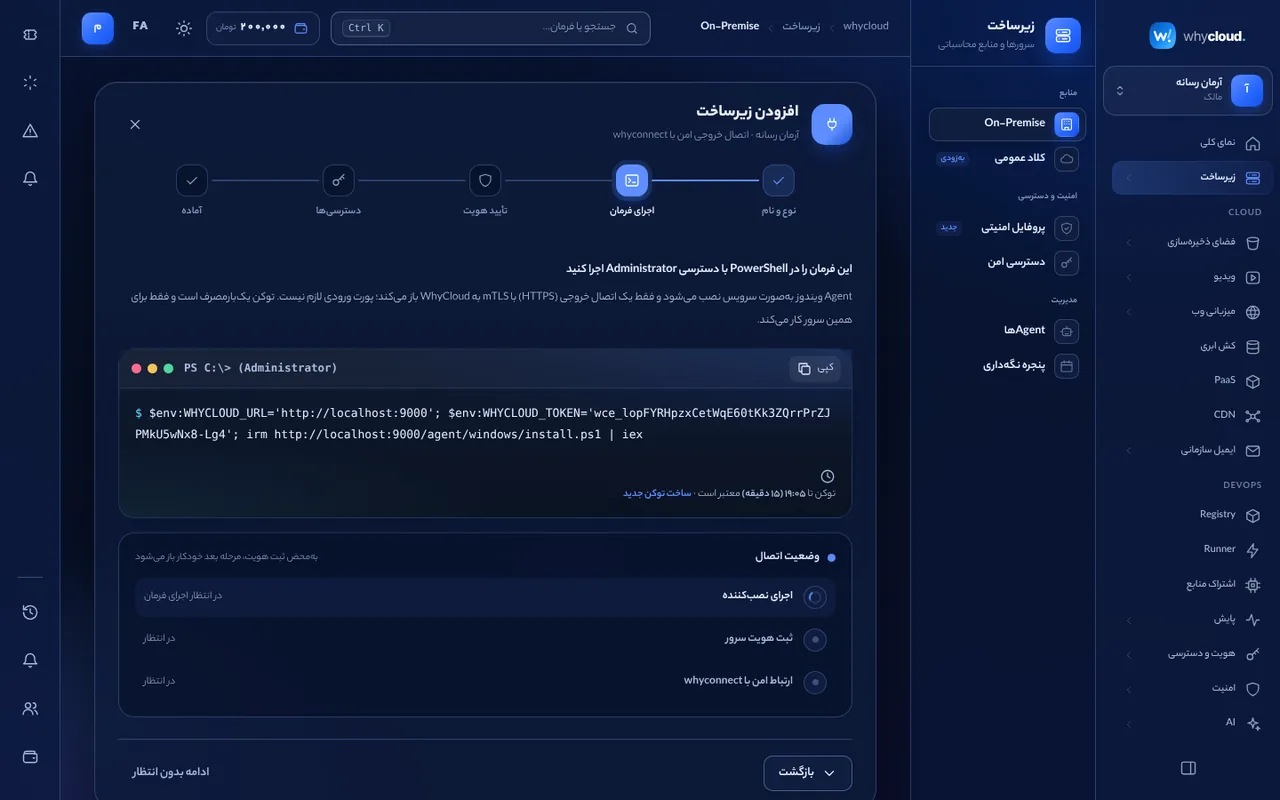
In the console → Infrastructure → Connect a server, choose “Windows Server”. Set the name and permissions and run the PowerShell command shown in an Administrator PowerShell window. The agent installs as the “WhyCloud Agent” service, opens one outbound encrypted connection, and the server appears online within seconds.
What you see
CPU, RAM, disks, Windows version, pending updates, running services and listening ports with the process behind each. Windows servers sit in the same list as Linux servers and Kubernetes clusters and inherit the same security profile.
Windows Firewall and RDP
In the security profile’s Windows section turn RDP off, allow it only from given sources (e.g. your office IP) or open it. Windows Firewall inbound rules are built from the same profile and checked every 5 minutes.
Agent commands
whycloud-agent status shows the connection and last report, whycloud-agent preview shows the rules that will be applied, and whycloud-agent uninstall removes the service.
Connection security
The agent enrolls with a token and then receives its own certificate (mutual TLS 1.3); every later connection uses it and it renews before expiry. No inbound port is opened for WhyCloud.